
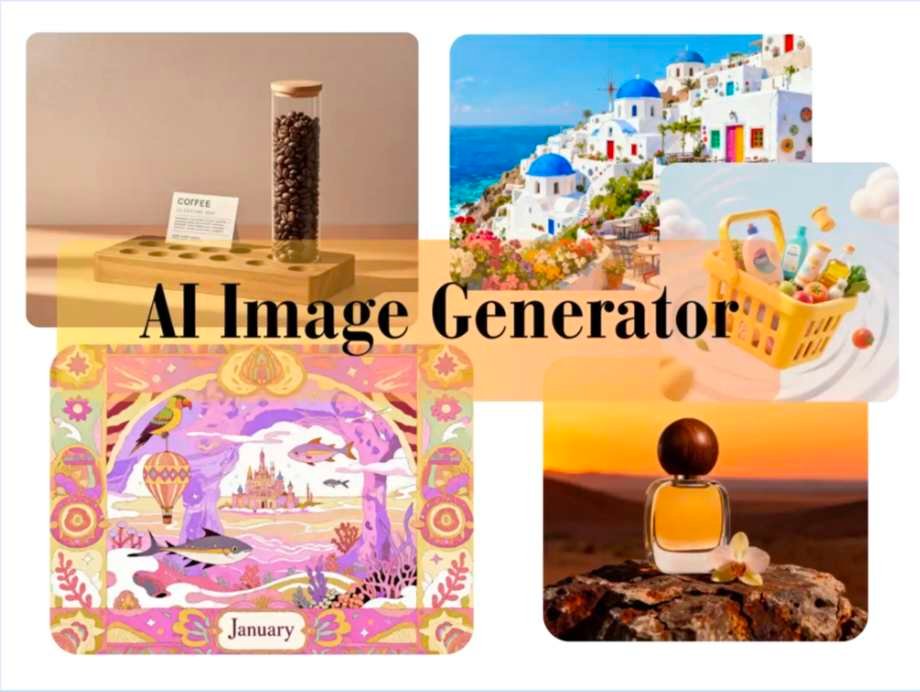
Creating stunning visuals is essential for grabbing attention online. Whether for social media, a blog, or marketing materials, images with compelling text perform better. But what if you don’t have design skills or a budget for expensive software? The solution is to combine two powerful, free tools to produce professional-grade graphics in minutes.
This guide will show you how to pair a Free AI Image Generator Online with a simple editor to create unique visuals from scratch. You’ll learn how to generate a custom background image and then add your message using a Free Image Text Editor for a polished final product. It’s a straightforward process that anyone can master.
Step-by-Step Guide to Creating Images with Text
Follow these steps to generate a unique image and add custom text. This process requires no prior experience and uses free online tools.
Step 1: Generate Your Base Image with AI
Before you can add text, you need a compelling image. An AI image generator allows you to create completely original pictures from simple text descriptions, known as prompts. This ensures your visual is one-of-a-kind and perfectly matches your topic.
First, navigate to an AI image generator. Think about the mood, subject, and style you want. A great prompt is specific and descriptive. For example, instead of “a picture of a cat,” you could write, “A fluffy ginger cat sleeping on a stack of books in a cozy, sunlit library, photorealistic style.” This level of detail helps the AI create a more accurate and interesting result.
Experiment with different keywords. Try adding terms like “minimalist,” “vibrant colors,” “cinematic lighting,” or “digital art” to influence the aesthetic. Once you enter your prompt, the tool will generate an image for you. If you’re not happy with the first result, you can tweak your prompt and try again until you have the perfect background. Download the final image to your computer.
Step 2: Upload Your Image to the Text Editor
With your unique AI-generated image saved, it’s time to add your message. Open the image text editor in your web browser. The interface is typically designed for simplicity, featuring a prominent “Upload Image” button.
Click the button and select the image file you just downloaded from the AI generator. The editor will load your picture onto a canvas, ready for text. This step bridges the gap between image creation and message delivery, giving you a workspace to complete your visual content. Ensure the uploaded image is high quality to avoid any pixelation.
Step 3: Add and Customize Your Text
This is where you bring your message to life. Look for a “Add Text” button or a text tool in the editor’s menu. Clicking it will place a default text box onto your image. You can now type your desired message, whether it’s a blog post title, a promotional offer, a famous quote, or a simple call to action.
Once your text is entered, you can customize its appearance. A good editor offers several options:
* Font Style: Choose a font that matches the tone of your message. A modern sans-serif font might work well for a tech blog, while an elegant script font could be perfect for a wedding invitation.
* Font Size: Adjust the size to ensure your text is readable without overpowering the image.
* Color: Select a color that stands out against the background. We will cover color contrast more in the tips section.
* Alignment: Align your text to the left, right, or center to create a balanced composition.
Play with these settings until the text looks exactly how you want it. The goal is to make the text an integrated part of the visual, not just an afterthought placed on top.
Step 4: Fine-Tune Placement and Composition
Where you place your text is just as important as what it says. Drag the text box around the image to find the optimal position. Look for areas with less detail or a solid block of color, often called negative space. Placing text in these areas prevents it from clashing with important elements in the background image.
Think about the rule of thirds. Imagine your image is divided into a 3×3 grid. Placing key elements, including your text, along these lines or at their intersections often creates a more visually appealing composition. Avoid placing text too close to the edges of the image unless it’s an intentional design choice. The right placement ensures your message is clear and the overall image feels balanced and professional.
Step 5: Download and Use Your Final Image
After you’ve finalized the text, its styling, and its position, you’re ready to save your work. Look for a “Download” or “Save” button. Most online editors give you options for the file format, commonly JPG or PNG.
* JPG: Best for photographs and images with lots of colors. It uses compression to keep file sizes small, which is great for websites.
* PNG: Ideal for graphics with text, logos, or transparent backgrounds. It preserves crisp lines and sharp details.
For an image with text, PNG is often the better choice for maintaining clarity. Select your preferred format, and the final image will be saved to your computer. It’s now ready to be uploaded to your blog, social media channels, or anywhere else you need high-quality visual content.
Tips and Best Practices
Following a few design principles can elevate your creations from good to great.
* Prioritize Readability: The most important rule is to ensure your text is easy to read. Use high contrast between your text and the background. Light text on a dark background or dark text on a light background always works well.
* Choose Fonts Wisely: Don’t use more than two different fonts on a single image. A common strategy is to pair a bold, attention-grabbing font for the headline with a simple, clean font for the body text.
* Maintain Brand Consistency: If you’re creating images for a business or brand, stick to a consistent color palette and set of fonts. This helps build brand recognition and gives your content a cohesive look.
* Less Is More: Avoid cluttering your image with too much text. A short, impactful message is far more effective than a long paragraph. Let the image do most of the talking.
Common Mistakes to Avoid
When you’re starting, it’s easy to make a few common errors. Here’s what to watch out for.
* Ignoring Background Complexity: Placing text over a “busy” or highly detailed part of an image can make it impossible to read. If your background is complex, consider adding a semi-transparent colored block behind your text to make it stand out.
* Clashing Colors: Avoid using colors that vibrate or clash, such as red text on a blue background. These combinations are harsh on the eyes and look unprofessional. Use a free online color palette generator if you need help finding colors that work well together.
* Poor Text Hierarchy: All text should not have the same size and weight. Make your main message the largest and boldest element. Supporting details should be smaller and less prominent. This guides the viewer’s eye through the information in the correct order.
* Stretching or Distorting Text: Never stretch a font to make it wider or taller. This distorts the letterforms and makes the text look unprofessional. Instead, choose a different font that has the width or height you need.
Conclusion
You no longer need to be a professional designer to create eye-catching visual content. By combining a free AI image generator with a user-friendly image text editor, you have everything you need to produce unique, high-quality graphics. This powerful duo allows you to craft the perfect background and overlay it with a clear, well-designed message.
This process empowers you to take full control of your visual branding without spending any money. Start experimenting today to enhance your blog posts, social media feeds, and marketing campaigns with custom visuals that capture attention and drive engagement.